
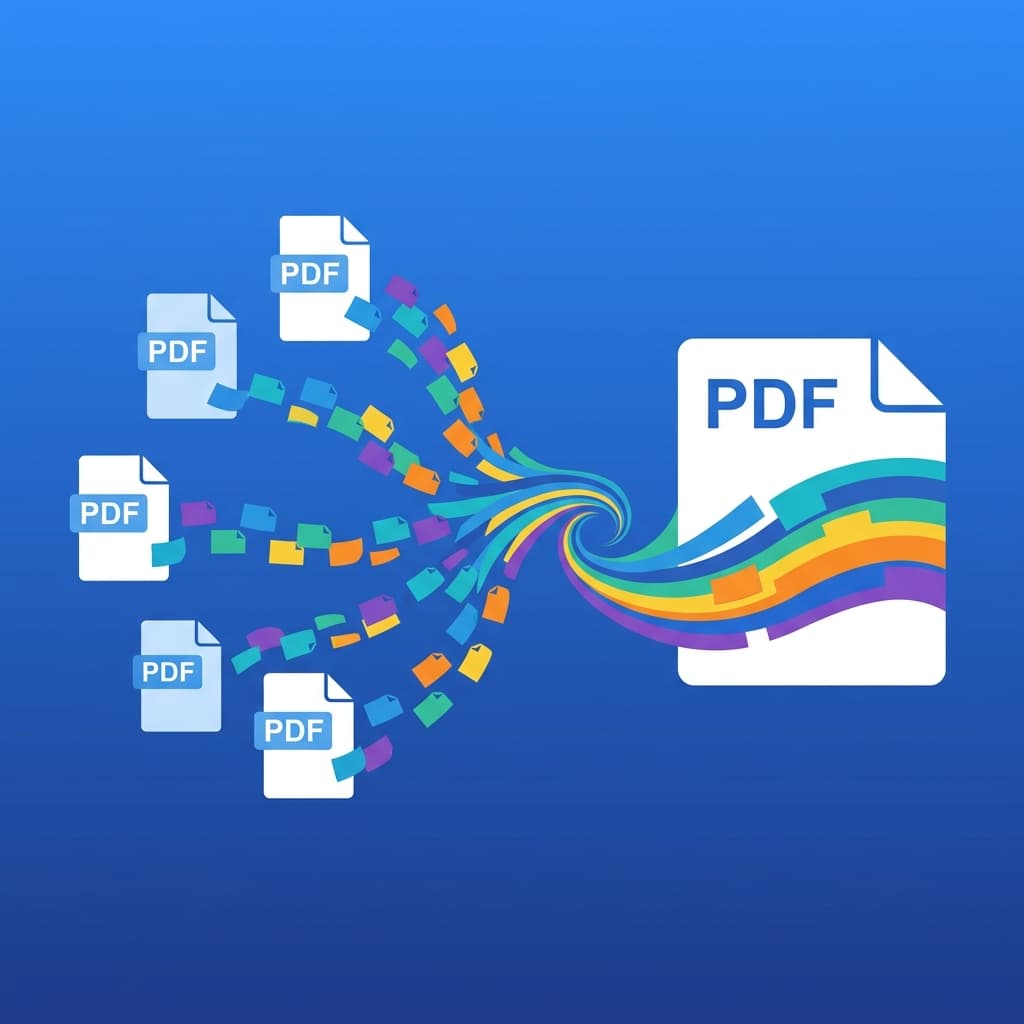
Every professional, student, and freelancer eventually faces the same frustrating scenario: you have five, ten, or twenty separate PDF files that need to become one cohesive document. Maybe it is a set of scanned receipts for an expense report, lecture slides from an entire semester, or contract appendices that a client needs in a single download. Whatever the case, the task is simple in theory but surprisingly annoying in practice—unless you know how to merge PDF files online for free using the right tool.
This guide walks you through everything you need to know about combining PDF files in 2026. We cover the most common scenarios, show you exactly how to use ToolNova's free PDF merger step by step, and share expert tips for organizing your documents before and after merging. No software installation. No watermarks. No account required.
Important
Quick Answer: The fastest way to merge PDF files online for free is to use the ToolNova PDF Merger. Upload your files, drag them into order, click "Merge," and download the combined document. It works entirely in your browser—no file uploads to external servers, no registration, and no watermarks on the output.
---
Why Would You Need to Merge PDFs?
Before jumping into the how-to, it is worth understanding *why* merging PDFs is one of the most commonly searched document tasks on the internet. The PDF format, originally created by Adobe in the early 1990s, was designed to preserve document formatting across every device and operating system. That reliability is exactly what makes it the universal standard for sharing business documents, academic papers, government forms, and creative portfolios.
However, PDFs were not designed with easy editing or combination in mind. Unlike a Google Doc where you can simply paste content from one document into another, combining PDFs requires dedicated tooling. Here are the scenarios where merging becomes essential:
For Students
- Submitting assignments: Many university portals only accept a single PDF upload. If your assignment includes a cover page, written responses, and scanned hand-drawn diagrams, you need to merge them into one file before submission.
- Creating study packets: Combine lecture slides, notes, and past exam papers into a single reference document for exam revision.
- Portfolio compilation: Art, architecture, and design students regularly merge project boards, sketches, and written statements into a unified portfolio PDF.
For Working Professionals
- Client proposals and reports: Merge an executive summary, data appendices, and terms of service into a single polished deliverable.
- Expense reports: Combine dozens of scanned receipts into one organized PDF for accounting or reimbursement.
- Legal and compliance bundles: Attorneys, accountants, and HR professionals routinely merge contracts, addenda, and supporting exhibits into court-ready or audit-ready document packages.
- Onboarding packets: HR teams assemble new-hire paperwork—offer letters, tax forms, benefits guides, and policy handbooks—into a single onboarding PDF.
For Freelancers and Small Business Owners
- Invoice bundles: Merge monthly invoices into a single document for quarterly tax filing.
- Project deliverables: Combine design mockups, brand guidelines, and final assets into one client-ready handoff file.
Pro Tip
If you also need to break a large PDF into smaller parts—such as extracting a single chapter from a textbook or isolating specific pages from a report—check out our PDF Splitter. Splitting and merging are complementary workflows that together give you full control over your PDF documents.
---
How to Merge PDF Files Online for Free Using ToolNova
ToolNova's PDF merger is designed to be the simplest, fastest, and most private way to combine PDF documents. Here is the complete step-by-step process:
Step 1: Open the PDF Merger Tool
Navigate to the ToolNova Merge PDF tool. No account creation or login is required. The tool loads instantly in any modern browser—Chrome, Firefox, Safari, or Edge—on both desktop and mobile devices.
Step 2: Upload Your PDF Files
Click the "Upload Files" button or simply drag and drop your PDF files into the upload area. You can select multiple files at once from your file explorer. The tool accepts standard PDF files of virtually any size.
Supported inputs:
- Standard PDF documents (.pdf)
- Scanned PDFs (image-based)
- Password-free PDF files
Note
If you have images (JPG, PNG, or WEBP) that you need to include in your merged document, first convert them to PDF using our Image to PDF converter, then merge the resulting PDF with your other files.
Step 3: Arrange the Page Order
Once your files are uploaded, you will see a visual list of all the documents. Drag and drop the files into your desired order. The final merged PDF will follow the exact sequence you set here.
This step is critical. Take a moment to verify:
- Is the cover page or title page listed first?
- Are appendices and supporting documents at the end?
- Do chapters or sections follow a logical reading order?
Step 4: Click "Merge"
Hit the "Merge" button. The tool processes your files directly in the browser. Because everything happens client-side, your documents are never uploaded to any external server. This is a significant privacy advantage over many competing tools that require server-side processing.
Step 5: Download Your Combined PDF
Once the merge is complete, a "Download" button appears. Click it to save the combined PDF to your device. The output file will contain all pages from all uploaded documents in the exact order you specified, with zero quality loss and no watermarks.
That is it. Five steps, no account, no cost, no limitations.
---
Privacy and Security: Why Browser-Based Merging Matters
One of the most overlooked aspects of online PDF tools is data privacy. Many popular "free" PDF merging websites operate by uploading your files to their servers, processing them remotely, and then sending back the merged result. This means your sensitive documents—financial records, legal contracts, medical forms, student transcripts—are temporarily stored on a third-party server. Some services retain uploaded files for hours or even days.
ToolNova takes a fundamentally different approach. The PDF merger runs entirely in your web browser using client-side JavaScript. Your files never leave your device. There is no server upload, no temporary cloud storage, and no data retention whatsoever.
This matters enormously when you are working with:
- Confidential business documents
- Personal financial information
- Student records protected by FERPA
- Medical records subject to HIPAA
- Legal documents under attorney-client privilege
Warning
Before using any online PDF tool, always check whether it processes files locally (in-browser) or uploads them to external servers. If a tool requires you to create an account or shows a progress bar while "uploading," your files are almost certainly being sent to a remote server. Treat this as a potential privacy risk for sensitive documents.
---
Expert Tips for Organizing PDFs Before and After Merging
Merging is only half the workflow. Proper organization before and after combining your documents dramatically improves the usability of the final file.
Before Merging
- Use a consistent naming convention. Rename your files descriptively before uploading. Instead of `scan001.pdf`, `scan002.pdf`, use `01-cover-letter.pdf`, `02-resume.pdf`, `03-references.pdf`. This makes it trivial to verify the correct order.
- Check page orientation. Ensure all pages are in the correct orientation (portrait vs. landscape). A single rotated page in a merged document looks unprofessional. Most PDF viewers allow you to rotate individual pages before saving.
- Remove unnecessary pages. Before merging, use a PDF Splitter to extract only the pages you need from larger documents. There is no point in merging an entire 200-page report when you only need the executive summary on pages 3–7.
- Verify file integrity. Open each PDF individually before merging to confirm it is not corrupted and displays correctly. A corrupted source file can cause issues in the merged output.
- Compress large files first. If any individual PDF is excessively large (e.g., a high-resolution scan at 50MB+), consider compressing it before merging. This keeps the final combined file at a manageable size for emailing or uploading.
After Merging
- Review the merged document. Always scroll through the complete output to verify that all pages are present, in the correct order, and properly oriented.
- Add bookmarks if needed. For long merged documents (50+ pages), consider using a PDF editor to add bookmarks or a table of contents. This dramatically improves navigation for the reader.
- Rename the output file. Give the merged PDF a clear, descriptive filename like `Q2-2026-Expense-Report-Complete.pdf` rather than the default `merged.pdf`.
---
Common Mistakes to Avoid When Merging PDFs
Even though merging PDFs is straightforward, a few common errors can waste your time or produce a subpar result:
| Mistake | Why It Matters | Solution |
|---|---|---|
| Merging password-protected PDFs without unlocking them first | The merge tool cannot read encrypted content | Remove the password before uploading |
| Ignoring page order before merging | The final document reads out of sequence | Always drag files into the correct order |
| Merging without reviewing the output | Missing or duplicated pages go unnoticed | Scroll through the entire merged PDF |
| Using a tool that adds watermarks | The output looks unprofessional and unusable | Use ToolNova's watermark-free merger |
| Not compressing large scanned PDFs beforehand | The merged file becomes too large to email | Compress individual files before merging |
---
Merge PDF Online Free: How ToolNova Compares
There are dozens of online PDF merging tools available, and not all are created equal. Here is a realistic comparison of what matters most:
| Feature | ToolNova Merge PDF | Typical Free Online Tools |
|---|---|---|
| Cost | 100% Free | Free with limitations or upsells |
| Account Required | No | Often yes |
| Watermarks | None | Frequently added on free tier |
| File Privacy | Client-side (browser only) | Server-side upload |
| File Size Limit | Generous | Often capped at 5–25 MB |
| Batch Merging | Yes | Limited on free plans |
| Drag-and-Drop Reorder | Yes | Not always available |
| Mobile Support | Full | Partial or broken |
---
Advanced Use Cases
Merging Scanned Documents
If you are working with scanned paper documents—common in legal, medical, and academic settings—you can merge them just like any other PDF. Scan each page or batch to a PDF file using your phone's built-in scanner app or a dedicated scanning app, then merge all the resulting PDFs into a single file using the ToolNova PDF Merger.
Creating eBooks or Course Packets
Teachers and course creators often compile reading materials from multiple sources into a single course packet. Merge individual chapter PDFs, assignment sheets, and syllabi into one downloadable file for students. If some materials are images, convert them first using the Image to PDF tool.
Combining Forms and Applications
Government and university applications frequently require submitting multiple forms as a single PDF. Merge your completed application form, supporting documents, identification copies, and recommendation letters into one professional submission package.
---
Frequently Asked Questions
Still have questions? Here are the answers to what people ask most about merging PDFs online.
---
Conclusion
Merging PDF files does not need to be complicated, expensive, or risky. Whether you are a student assembling an assignment, a professional compiling a report, or a freelancer packaging a client deliverable, the process should be fast, free, and private.
ToolNova's PDF Merger delivers exactly that—a zero-cost, zero-signup, zero-watermark tool that processes everything in your browser. Combined with the PDF Splitter for extracting pages and the Image to PDF converter for handling non-PDF files, you have a complete document workflow without installing a single application.
Bookmark the tool, use it whenever you need it, and never pay for basic PDF functionality again.