Quick Answer
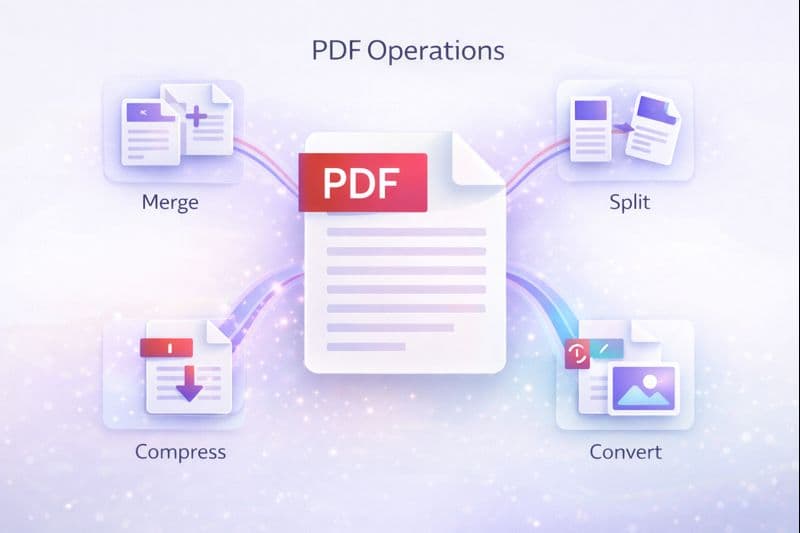
Build once, upload once: compress photos → Image to PDF → Merge PDF with your written file → Split PDF to drop junk pages → Compress PDF until you are under the portal cap (often 1–5MB).
Key Takeaways
- Portals reject multi-file zips and oversized scans—not “bad students.”
- Merge for order; split for bloat; compress last so you only shrink the final packet.
- Phone photos should be compressed **before** they become PDF pages.
- Keep a reusable checklist so deadline night is mechanical, not chaotic.
Most course and application portals want one PDF under a hard size limit. Students usually have the opposite: a Word export, three phone photos of worksheets, a scanned certificate, and a random blank page. This guide is the free ToolNova loop that turns that mess into one clean upload.
The portal-ready PDF checklist
- Collect sources — written PDF + scans/photos only (not 20 open tabs).
- Fix images first — Image Compressor on every photo/scan.
- Photos → PDF — Image to PDF, drag pages into order.
- Combine everything — Merge PDF: cover → main work → appendix.
- Drop dead weight — Split PDF to remove blank or wrong pages.
- Hit the size cap — Compress PDF (Balanced, then Smallest if needed).
- Open the download — zoom text, check page order, confirm file size in Downloads.
Deep dive when you are stuck on size: How to compress a PDF to 1MB. Format choices (JPG vs PNG vs PDF): JPG/PNG/PDF workflow.
Step 1 — Compress scans before they bloat the PDF
Phone cameras create multi-megabyte images. If you convert first and compress later, you fight a fat PDF. Instead:
- Open Image Compressor.
- Drop homework photos; start moderate quality.
- Preview text readability (equations must stay legible).
- Download smaller images.
Only then open Image to PDF and arrange page 1 as the first worksheet.
Step 2 — Merge without scrambling order
Portals grade what they see. Put files in reading order before merge:
- Open Merge PDF.
- Upload written essay PDF + image-based PDF + any certificates.
- Drag thumbnails: title page → body → appendix.
- Merge and download.
More detail: Merge PDF free guide and merge without losing formatting.
Step 3 — Split out pages portals do not need
A 30-page packet with one required form is a rejection risk (size) and a reviewer headache.
- Open Split PDF.
- Extract only the pages named in the assignment (e.g. 1–8 and 12).
- Download the extract.
- If you need pieces recombined later, Merge PDF again.
Step 4 — Compress the final file for 1MB–5MB caps
After the document is complete and correct:
- Open Compress PDF.
- Try Balanced first.
- Check Downloads size vs the portal rule (1MB = 1,024 KB).
- If still over: Smallest, or re-compress the heaviest image pages and rebuild.
Browser tools on ToolNova process files locally for PDF/image utilities—no watermark and no signup for those local tools.
Common failure modes (and fixes)
| Problem | Fix |
|---|---|
| “File too large” | Compress images → rebuild → Compress PDF |
| Wrong page order | Re-merge with drag order; do not re-scan everything |
| Blurry equations | Use milder image compression; avoid extreme PDF “Smallest” first |
| Extra blank pages | Split PDF them out |
| Multiple images emailed as a zip | Image to PDF + merge into one file |
10-minute emergency workflow
If the deadline is now:
- Compress only the largest photos.
- Image to PDF those pages.
- Merge with the essay PDF.
- Split anything not required.
- Compress PDF → upload.
Do not redesign the assignment at minute 55—optimize packaging.
Final takeaway
A portal-ready PDF is a pipeline, not a miracle button. Compress early, merge for structure, split for focus, compress last for size. Run the full free kit from Image & PDF tools.
Need help rewriting or polishing your text?
Use ToolNova’s 100% free Paraphraser & Grammar Checker. No signup required.