Important
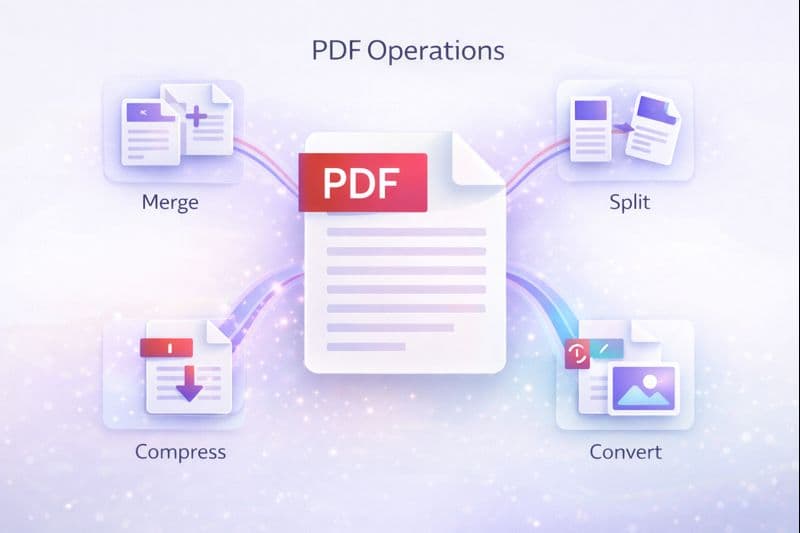
Quick Answer: The best free PDF tools don't require software installation. Use our Merge PDF to combine files, Split PDF to extract pages, and Image Compressor for reducing file sizes. All tools work directly in your browser with no account required.
PDF editing used to require expensive software like Adobe Acrobat.
Not anymore.
In 2026, free online tools handle everything from basic merging to complex conversions—all in your browser, with no downloads, and often no sign-ups required.
This guide covers every PDF task you'll encounter and the best free tools to handle them.
Why Online PDF Tools Beat Desktop Software
The Advantages
| Online Tools | Desktop Software |
|---|---|
| No installation | Requires download and setup |
| Works on any device | Device-specific |
| Always up-to-date | Manual updates |
| Free or low cost | Often expensive |
| Instant access | License management |
When Desktop Software Still Wins
To be fair, desktop tools like Adobe Acrobat Pro are still better for:
- Heavy daily use with large files
- Advanced editing (text reflow, OCR)
- Sensitive documents (better privacy)
- Offline work
For occasional PDF tasks, online tools are perfect.

PDF Tool Features Comparison
Essential PDF Operations
Merging PDFs
What it does: Combine multiple PDF files into one document
When you need it:
- Combining scanned pages into one file
- Merging report sections
- Creating comprehensive documents
- Organizing related files
Our merge tool allows you to:
- Upload multiple PDFs at once
- Drag to reorder pages
- Preview before merging
- Download instantly
Splitting PDFs
What it does: Separate a PDF into multiple files or extract specific pages
When you need it:
- Extracting specific pages from a report
- Breaking a book into chapters
- Separating scanned batches
- Creating smaller, shareable files
Features:
- Select exact page ranges
- Extract individual pages
- Split into equal parts
- Preview before splitting
Compressing PDFs
What it does: Reduce file size while maintaining quality
When you need it:
- Large file won't attach to email
- Faster download/upload
- Saving storage space
- Meeting file size limits
Tips for compression:
- Higher compression = lower quality
- Start with medium settings
- Test readability after compression
- Consider image-heavy documents
Converting Images to PDF
What it does: Turn images into PDF documents
When you need it:
- Creating PDFs from phone photos
- Combining receipts into one document
- Professional presentation of images
- Document scanning alternatives
Supports:
- JPG, PNG, WEBP, and more
- Multiple images at once
- Custom page ordering
- Quality preservation
Image Processing for PDFs
Image Compression
Before adding images to PDFs:
Benefits:
- Smaller final PDF size
- Faster sharing
- Reduced storage needs
- Maintained visual quality
Format Conversion
Convert between image formats:
- JPG to PNG – For images needing transparency
- PNG to JPG – For smaller file sizes
Workflow Best Practices
For Document Assembly
Scenario: Creating a proposal from multiple sources
- Gather materials: Collect all PDFs and images
- Compress images: Use image compressor for photos
- Convert if needed: Image to PDF for non-PDF files
- Merge: Combine all with Merge PDF
- Review: Ensure correct order and quality
For Document Distribution
Scenario: Sharing large files via email
- Check file size: Email typically limits 10-25MB
- Compress if needed: Reduce PDF size
- Split if necessary: Break into smaller parts
- Consider alternatives: Use cloud sharing for very large files
For Document Organization
Scenario: Organizing scanned documents
- Scan to image or PDF
- Group related scans
- Merge related pages
- Name files clearly
- Compress for storage
Security Considerations
Warning
Be cautious with sensitive documents. While our tools process files securely, avoid uploading highly confidential information to any online service.
Safe Practices
- Use trusted tools: Stick to reputable services
- Check privacy policies: Understand data handling
- Delete sensitive files: Don't leave on cloud tools
- Consider encryption: For highly sensitive PDFs
- Use offline tools: For confidential documents
What We Do
Our PDF tools:
- Process files in-browser when possible
- Don't store uploaded files permanently
- Use secure connections (HTTPS)
- Don't require account creation
Common Tasks Quick Reference
| Task | Tool | Time |
|---|---|---|
| Combine 5 PDFs | Merge PDF | 30 seconds |
| Extract pages 5-10 | Split PDF | 30 seconds |
| Reduce PDF size | Compression | 30-60 seconds |
| Photo to PDF | Image to PDF | 30 seconds |
| Shrink images | Image Compressor | 15 seconds |
Troubleshooting Common Issues
File Too Large to Upload
Solutions:
- Compress images before adding to PDF
- Split into smaller sections
- Use lower-quality compression settings
- Check your internet connection
Quality Loss After Compression
Solutions:
- Use lighter compression settings
- Reduce image resolution before PDF creation
- Consider file-specific compression tools
- Accept trade-off or keep original
Merge Order Problems
Solutions:
- Rename files with numbers (01_intro.pdf, 02_chapter1.pdf)
- Use tools that allow drag-reordering
- Preview before final merge
---
Manage your PDFs with these free tools:
- Merge PDF – Combine multiple PDFs
- Split PDF – Extract pages from PDFs
- Image to PDF – Convert images to PDF
- Image Compressor – Reduce image sizes
Need help rewriting or polishing your text?
Use ToolNova’s 100% free Paraphraser & Grammar Checker. No signup required.